Using the Editor: Passages View#

At the bottom of the Passages View is a menu with access to different functionality.
Return to Story Listing#

Return to the Story List.
Story Menu#

The Story Menu gives access to different functionality about the story itself.
Edit Story JavaScript#
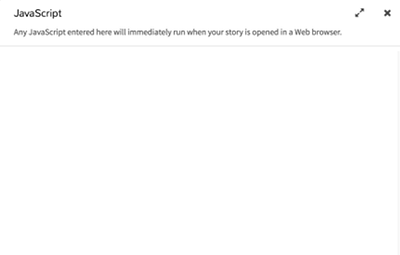
The Edit Story JavaScript screen allows for adding or changing JavaScript code that will be included in the story when run or published in a HTML file.
Edit Story Stylesheet#

The Edit Story Stylesheet screen allows for adding or changing CSS rules that will be included in the story when run or published in a HTML file.
Change Story Format#

The Story Format screens allows for changing the story format in use when running and publishing the story in HTML.
Rename Story#

The Rename Story option allows for changing the name of the story.
Select All Passages#
The Select All Passages places all passages into a single selection for moving or rearranging them as a group
Snap to Grid#
The Snap to Grid option turns off or on if passages should move to the closest grid position when moved.
Story Statistics#

The Story Statistics screen shows data on the story including the number of characters and words.
View Proofing Copy#

The View Proofing Copy of a story is the text of all passages except for the Story JavaScript and Story Stylesheet.
Publish to File#
The Publish to File option compiles the current story and any Story JavaScript and Story Stylesheet code into a single HTML file.
Quick Find#

The Quick Find functionality is used for searching for words or longer phrases across all passages.
Find and Replace#

The Find and Replace functionality search for words, phrases, or certain expresses for the purpose of replacing them, if found, with other words or longer phrases.
Story Structure#

The Story Structure view shows the connection between passages only.
Passage Titles#

The Passage Tiles view shows simply that: passage titles.
Titles and Excerpts#

The Titles and Excerpts view shows passages, their contents, and excerpts of their contents.
Play Story in Test Mode#

The "Play Story in Text Mode" button starts turns on debugging functionality and starts the story.
Play Story#

The "Play Story" button starts the story in a new tab or window.
Create New Passage#

The "Create New Passage" button creates a new, unconnected passage in the Passage View.